



















How to back up and archive a Facebook group
Years of community knowledge can disappear overnight: an admin deletes the group, an account gets hacked, or Facebook removes content. If your group matters to you, keep your own copy.
作成者:Pierre Carron · 2026年10月 更新
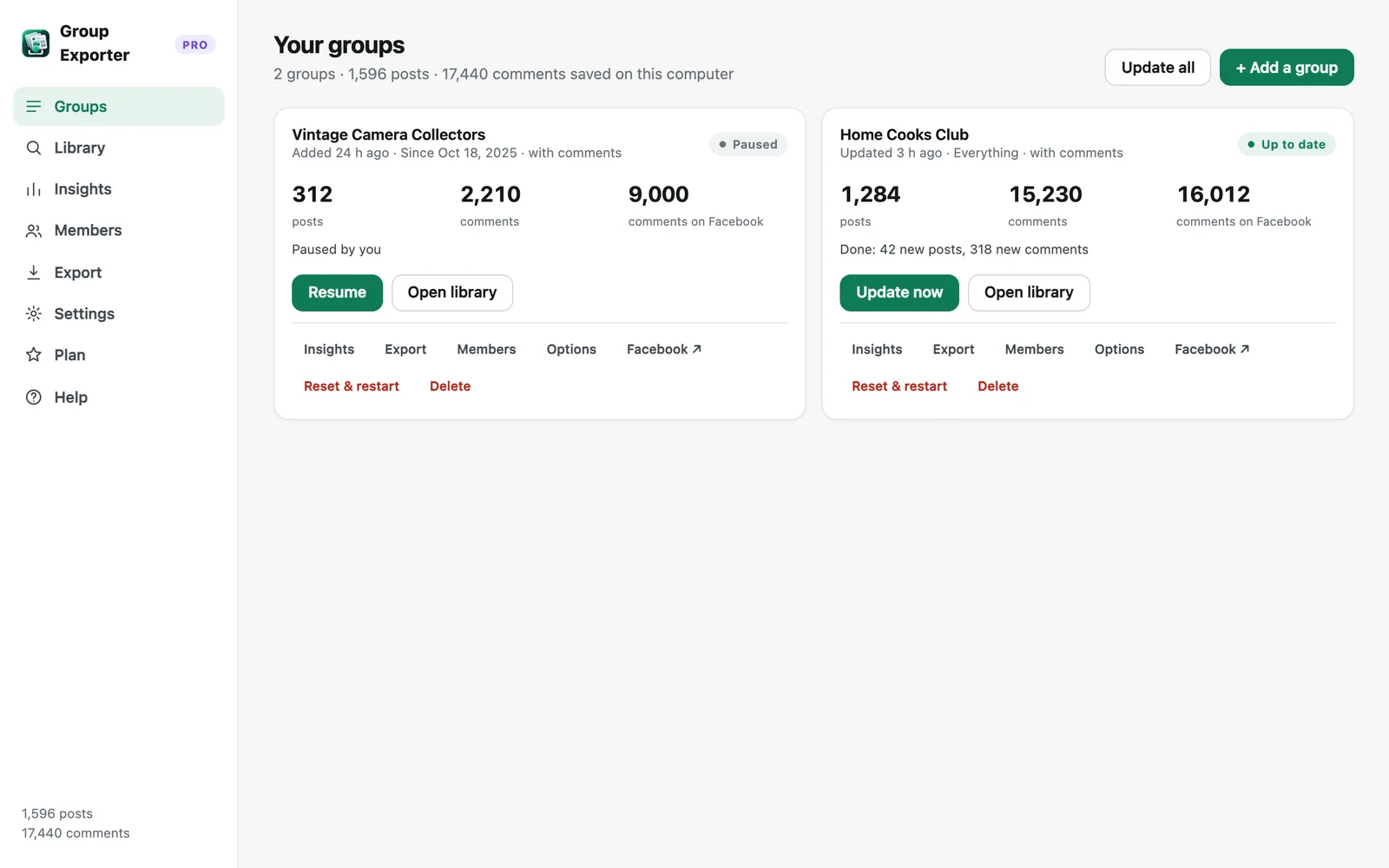
ステップごとの手順
- Download the whole group. Open the group with Group Exporter for Facebook installed and click "Download this group" with "Everything" and comments selected.
- Export an offline archive. In Export, choose "Offline archive (HTML)" and "Full data (JSON)", package as ZIP, and include photos.
- Store the ZIP safely. Keep the ZIP on an external drive or cloud storage. The HTML archive opens in any browser, offline, with search.
- Keep it current. Turn on automatic daily updates (Pro) and auto-export so your archive always includes the latest posts.
Why an HTML archive?
A single archive.html file opens in any browser, on any computer, without an internet connection or any software. It includes search, threaded comments and a "Print / PDF" button. The JSON file is the complete machine-readable backup, and Group Exporter for Facebook can import it again to restore your library on another computer.
Photos
Facebook photo links expire after a while. Export with "Include photos" soon after downloading to keep the images inside your ZIP.
For group admins
Archiving is also useful before migrating a community to another platform (Discord, Circle, a forum), for moderation records, or to build a FAQ from years of answered questions.
その他のガイド
- How to export all comments and replies from a Facebook group
- How to get a Facebook group into Google Sheets
- How to download the photos from a Facebook group
- How to export a private Facebook group you're a member of
- Facebook group analytics without admin access
- How to export the members of a Facebook group
- How to analyze a Facebook group's activity, members and top posts
- Collecting Facebook group data for academic research