








How to see who unfollowed you on Instagram
Instagram shows your follower count, but never who left. Apps that promise to tell you often want your password, which is risky. Here is a safe way: compare your followers from one day to the next, automatically, with a browser extension that works in your own logged-in tab.
Autor: Pierre Carron · Zaktualizowano październik 2026
Krok po kroku
- Install Unfollowers Tracker. Add Unfollowers Tracker to Chrome (also Edge or Brave) and log in to instagram.com in that browser.
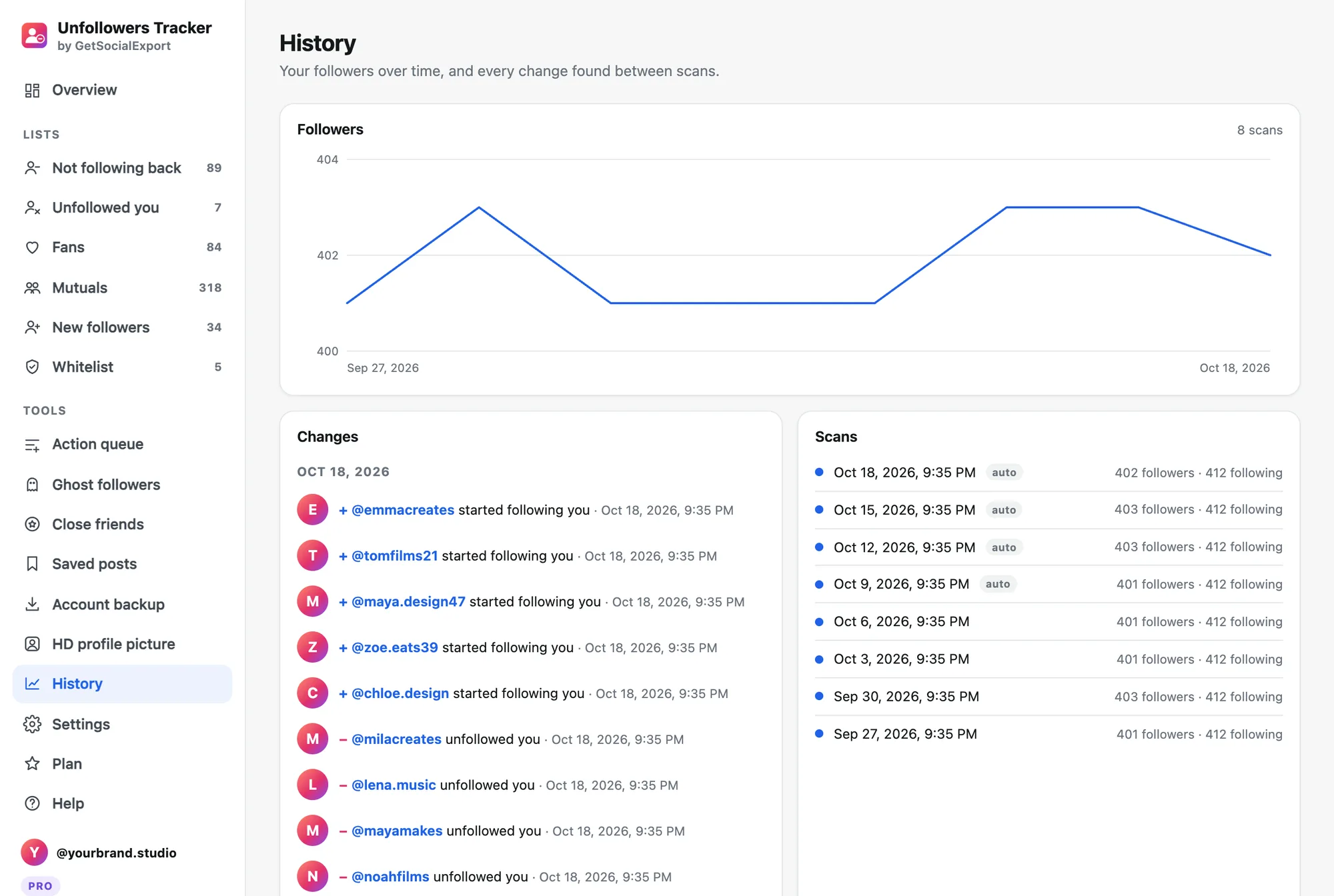
- Run a first scan. Click the extension icon, then "Scan my account". It reads your followers and following at a human pace, in about a minute.
- Scan again later. The next day, or the next week, scan again. The extension compares both scans and lists who unfollowed you, with the date. Pro can scan automatically every day and notify you.
- Decide what to do. Unfollow them back in one click, or keep them in your whitelist.
Why Instagram doesn't tell you
Instagram never notifies anyone of an unfollow. The only way to know is to compare your followers list at two different times, which is impossible by hand once you have more than a few hundred followers.
What are the ways to see who unfollowed you?
Every method compares two lists of your followers taken at different times; they differ in who does the comparing and what you have to hand over. The free methods work but are slow; apps that ask for your password are fast but risky.
| Method | Shows who unfollowed | With dates | Asks for your password | Effort | Cost |
|---|---|---|---|---|---|
| Check one person’s profile | Only for that person | No | No | One profile at a time | Free |
| Compare two Instagram data downloads | Yes | Between the two downloads | Only to Instagram, to request the file | Wait for each file, then compare in a spreadsheet | Free |
| Unfollower apps that ask you to log in | Usually | Varies | Yes, given to the app | Low | Often a subscription |
| Unfollowers Tracker (browser extension) | Yes, from the second scan | Yes, for each scan | No | One click per scan, or a daily automatic scan with Pro | Free scan (first 30 people per list), Pro $14.90 once |
The free manual method: compare two data downloads
In Accounts Center, open “Your information and permissions”, then “Download your information”, and request only your followers and following in JSON. Do it again a week later. Each file lists your followers with the date they followed you; put both lists in a spreadsheet and look for usernames that are in the first one but not in the second (in Excel, =COUNTIF(B:B, A2)=0 next to the first list).
It works and it’s free, but each file can take hours or days to arrive, and you only learn about unfollows between the two dates you happened to choose. To check a single person, open their profile, tap Following and search for your username: if you’re not there, they don’t follow you.
Unfollowed you, or never followed you back?
They are two different lists. “Not following back” is everyone you follow who doesn’t follow you, today; it needs one scan. “Unfollowed you” is people who followed you before and stopped, which only shows up by comparing a later scan with an earlier one. That’s why the first scan can’t show unfollowers yet: tracking starts with it.
Avoid apps that ask for your password
Giving your Instagram password to a third-party app can get your account flagged or stolen, and Instagram’s own security advice is to revoke access for suspicious apps. Unfollowers Tracker never asks for it: it works inside your normal Instagram tab, and your lists stay on your computer.
Why the number can differ slightly
Instagram's counter includes deactivated and some restricted accounts that its lists don't return. A difference of a few accounts is normal. Someone who deactivates their account also appears as "unfollowed".
Źródła
- Instagram Help Center: Download a copy of your information
- Instagram Help Center: Tips to keep your account secure
Więcej poradników
- Instagram unfollow limit: how many accounts can you unfollow per day?
- How to see who doesn't follow you back on Instagram, and unfollow safely
- How to export a Microsoft Teams chat to PDF
- How to export a Microsoft Teams chat to Excel or CSV
- How to save Microsoft Teams messages as a credible record
- How to save your Microsoft Teams chats before you leave a job
- How to keep a record of a Microsoft Teams conversation
- How to export Instagram followers to Excel (or CSV)