


How to install the extensions
One minute, no account, nothing to configure. Follow the steps below with the screenshots: they work for all five extensions, in Chrome, Edge, Brave and other Chromium browsers.
Pick your extension
The download is a small ZIP file (under 200 KB).
From the Chrome Web Store
The extensions are being reviewed by the Chrome Web Store. Until they’re listed, install them with the direct download: it’s the same extension and takes one minute.
Direct download: install in 6 steps
This is how Chrome installs an extension from a file. You do it once: the extension then works like any other and tells you when an update is available.
- 1
Download the ZIP
Click Download next to your extension above. The file lands in your Downloads folder.
- 2
Unzip it
Double-click the ZIP file (on Windows: right-click → Extract All). You get a folder with the same name. Keep this folder: Chrome loads the extension from it, so don’t delete it afterwards.
- 3
Open the extensions page
Type
chrome://extensionsin the address bar and press Enter (Edge:edge://extensions, Brave:brave://extensions).chrome://extensions - 4
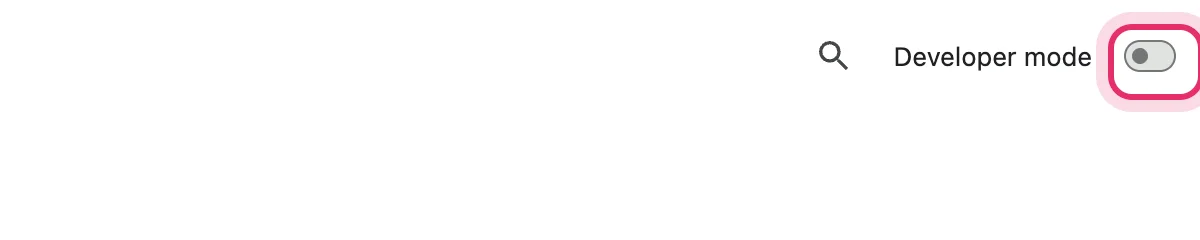
Turn on “Developer mode”
Use the switch in the top-right corner of the page. It only lets you load an extension from a folder; it changes nothing else in Chrome.
- 5
Click “Load unpacked” and choose the folder
Select the folder you unzipped in step 2 (the one that contains
manifest.json), then click Select.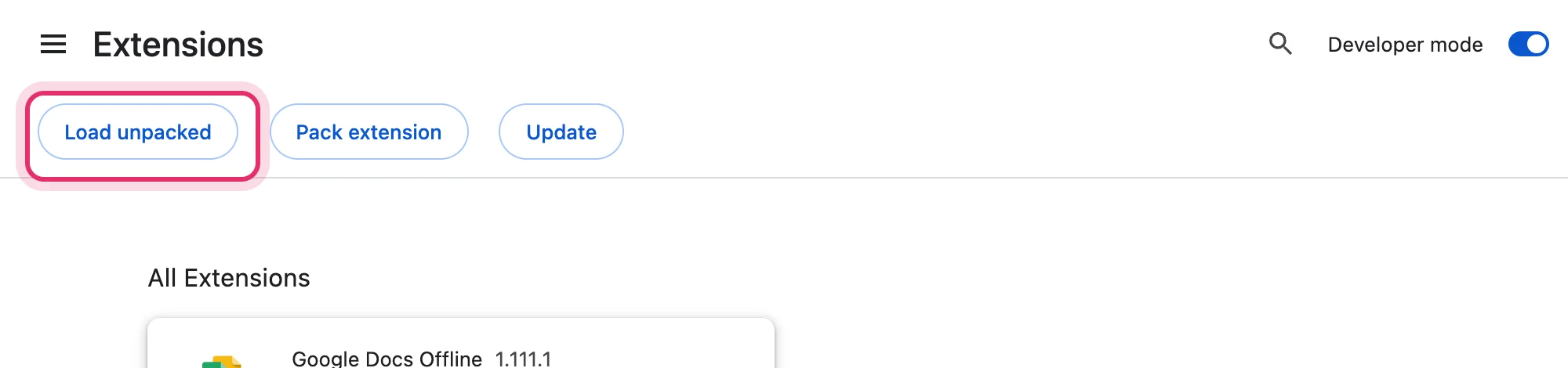
- 6
Pin it to your toolbar
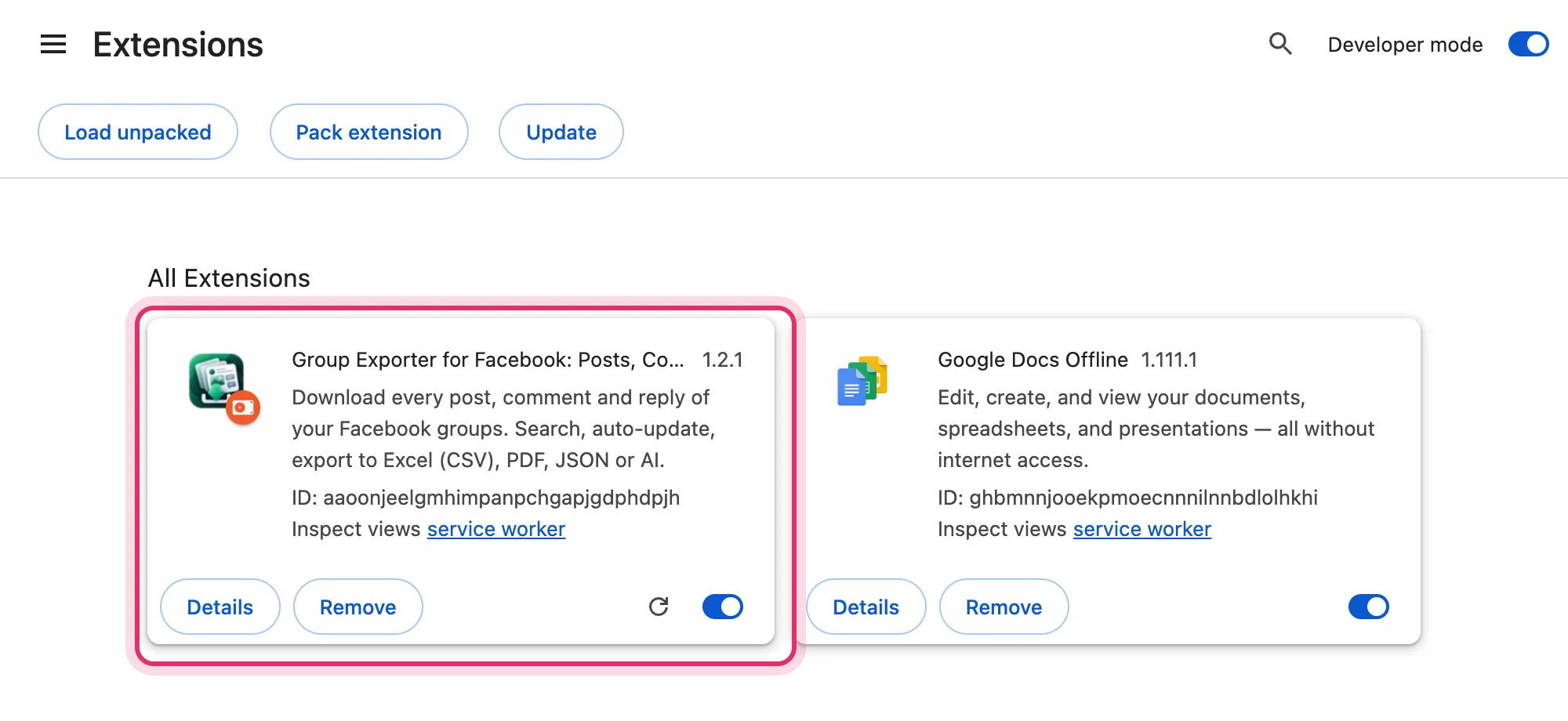
The extension appears in the list. Click the puzzle icon at the top right of Chrome, then the pin next to the extension, so its icon is always one click away.
Other browsers
- Microsoft Edge
- Open
edge://extensions, turn on Developer mode at the bottom left, then Load unpacked. - Brave
- Open
brave://extensions, then the same steps as Chrome. - Opera, Vivaldi, Arc
- Open the browser’s extensions page, turn on developer mode and load the folder. Safari and Firefox aren’t supported.
Updating
- When a new version is out, the extension shows “Update available” with a link.
- Download the new ZIP, unzip it over the old folder (replace the files), then click the round arrow on the extension’s card in chrome://extensions. Your data and license are kept.
- Once the extension is on the Chrome Web Store, Chrome updates it by itself.
If something goes wrong
“Manifest file is missing or unreadable”
You selected the ZIP file or a folder above the right one. Choose the folder that directly contains manifest.json.
I don’t see “Load unpacked”
Turn on Developer mode first (top right). Work computers can block it: ask your IT team, or wait for the Chrome Web Store version.
The extension disappeared after a restart
The folder was moved or deleted (for example, it was still in a temporary folder). Unzip it somewhere permanent, like Documents, and load it again.
Chrome shows a “developer mode extensions” warning
Some Chrome versions remind you that developer mode is on. It’s informational: keep the extension enabled.
Is this safe?
Yes. It’s exactly the same extension that is submitted to the Chrome Web Store, with no remote code. It only runs on the sites it needs, keeps your data on your computer, and never asks for your passwords. Privacy · support@getsocialexport.com