
















Every big platform now has a button that hands you "a copy of your information". On Facebook it sits in Accounts Center, on Instagram it is the same screen wearing a different logo, and on TikTok it is buried three menus deep under Account. They all look like a full backup. None of them is.
What they actually give you is a ZIP of the things you created, filtered through rules that each company spells out in its own help pages, if you read far enough. This guide walks through the three exports step by step, using what Meta and TikTok themselves say about them, and then gets to the part most tutorials skip: what is not in the file, and what you can do about it.
Exporting your Facebook data, step by step
Meta is rolling out a new settings area, so depending on your account the menus are called either Accounts Center or Meta Account settings. The path inside is the same:
- Open Facebook, tap your profile picture in the top right, then go to Accounts Center (or Meta Account settings).
- Open Your information and permissions, then Export your information, and start a new export.
- Choose the profile. If you run additional Facebook profiles, each one has its own export, but Meta notes that some data from extra profiles, including ads information, only comes with the export of your main profile.
- Choose where it goes: to a device (a ZIP you download) or to an external service (Meta pushes the files to another service you connect, once or on a schedule).
- Customize it: which information, the date range, the format, the email that gets notified, and the media quality.
- Confirm with your password. Meta says it may also ask for extra verification before the export starts.
Then you wait. Meta's page on data logs puts the normal wait plainly: the information you asked for "is typically ready in a few hours". If you also ticked data logs (more on those below), they arrive as a separate file and can take up to 15 days, without holding up the rest.
When the file is ready you get an email and a Facebook notification, and then the clock starts: you have 4 days to download it. After that the export expires and you have to request a new one. That expiry is deliberate. Meta presents it as a security measure, since the file can contain private information.
HTML or JSON?
This is the one choice that changes what you can do with the file afterwards.
HTML gives you a ZIP that, once extracted, contains a page you open in your browser, with folders for the photos and videos you included. It is the right pick if you want to read your history: scroll through old posts, find a message, show someone a photo from 2014.
JSON is, in Meta's words, "a machine readable format" meant for moving your information to another service. Pick it if you want to put the data in a spreadsheet, a database or a script, or if you plan to compare two exports over time. It is not pleasant to read in a text editor.
If you are unsure, you can run two exports, one in each format. On a big account it is also worth narrowing the date range and skipping high-quality media: Meta warns that high-quality video makes the files much larger, and you need the storage space to download them to a device.
What Facebook puts in the file
Meta's list of export categories is broad: your activity across Facebook (posts you created, photos you're tagged in, groups you belong to), the personal information you entered when you set up your profile, your connections (friends, followers), logged information such as your search history, security and login details, apps and websites off Facebook, your preferences, and your ad interactions.
Data logs are the extra layer. Meta describes them as "additional details we collect and store that can be associated with you": things you viewed or clicked, device information, and the third-party apps you logged into with Facebook. They are only included if you customize the export and select them, which is why most people never see them.
If you manage a Facebook Page, that is a separate download. Meta documents it for people with full control of the Page, from the Page's own settings, with the same choices of format, media quality and date range.
Exporting your Instagram data
Instagram's export lives in the same Accounts Center, and the steps are nearly identical: your profile, the menu, Accounts Center, Your information and permissions, Export your information, then pick the Instagram profile and a destination. You get the same choices of information, date range, format, notification email and media quality, and the same 4-day window once the file is ready.
Two details differ, and both are in Instagram's own help text.
First, the wait can be much longer. Instagram says it "may take up to 30 days for us to email you an export link". If you need the file for a deadline, request it early.
Second, Instagram splits the export into two levels. Available information covers your account's information and activity without data logs. Specific types of information includes data logs too, and is also the option that lets you pick individual categories, for example only your photos or only your messages.
That second option is worth knowing about, because a narrow export is fast. Our guide to finding out who unfollowed you uses exactly this: request only your followers and following in JSON, do it again a week later, and compare the two lists in a spreadsheet. It costs nothing. It is just slow, and you have to do the comparison yourself.
Exporting your TikTok data
TikTok's export is in the app: Profile, the ☰ menu at the top, Settings and privacy, Account, then Download your data. You choose which information to include, pick a file format and tap Request data.
TikTok's help page says the file "may take a few days" to prepare. You get an in-app notification, and the file then sits in the Download data tab for up to 4 days (that 4-day window again). You can also cancel a request that is still being prepared.
Two caveats from the same page are easy to miss. Because of processing delays, the last 24 to 48 hours of some categories may not be in your file; if you need them, request again later. And "some data can't be downloaded", namely data that would affect other people's privacy.
If you live in the European Economic Area or the UK, TikTok also lets you authorize a third-party service to pull your data directly (your posts, profile and activity information, even your direct messages), once or on an ongoing basis. That is TikTok's data portability route, and it is worth treating like any other app permission: grant it only to services you trust, and revoke it when you're done.
The three exports side by side
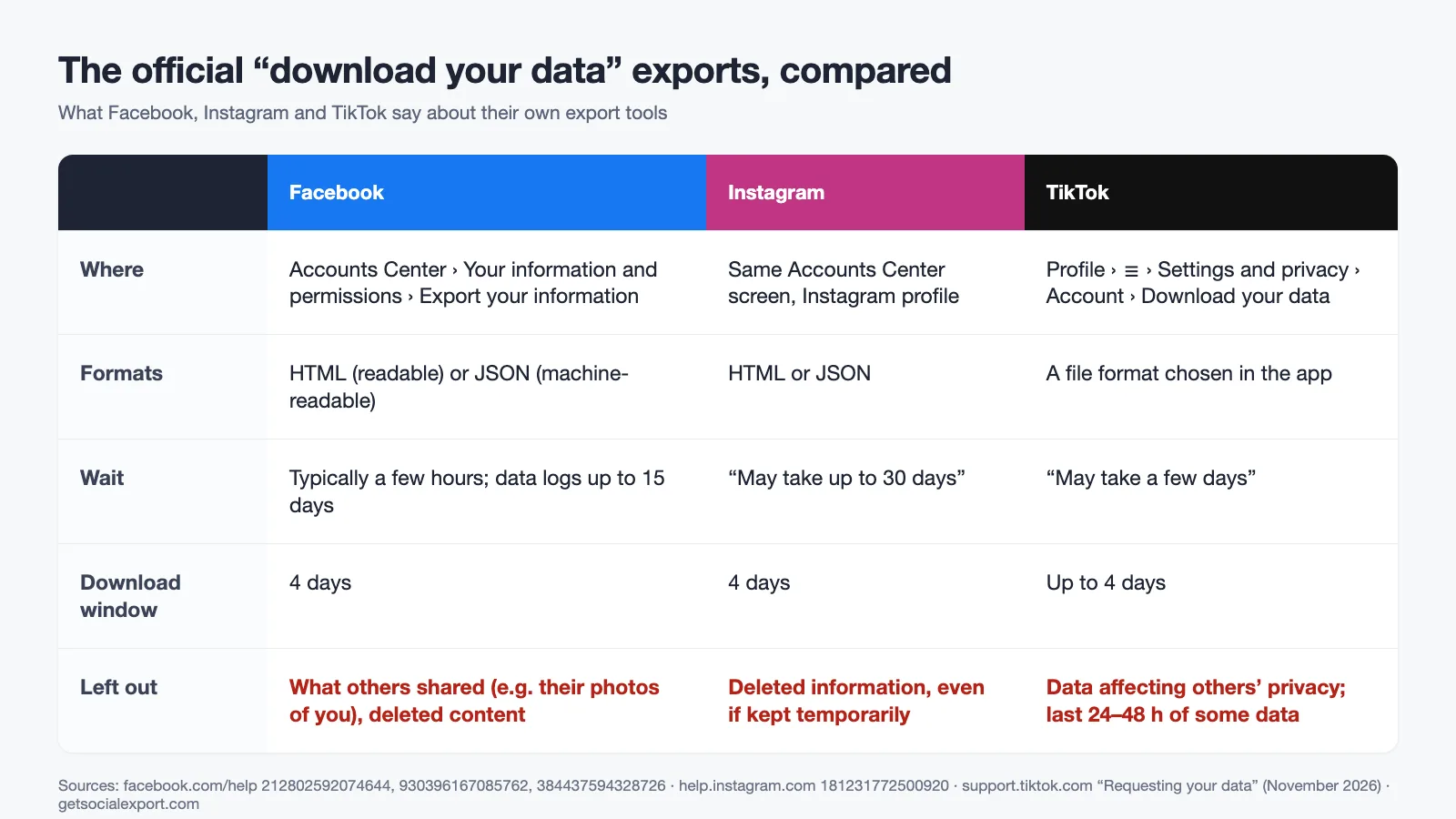
The chart at the top of this page puts the three exports next to each other, using only what each platform's help pages say. The pattern is clear once you line them up. All three hand you a ZIP. All three let you narrow it down. All three delete it after about four days. And all three are built around one idea: you get your own data, not other people's.
What the official exports leave out
Meta's rule is written in one sentence on its categories page: "Your export won't include information that someone else shared, like another person's photos that you're tagged in." TikTok says the same thing more vaguely ("data that would affect the privacy of others"). That rule is reasonable for privacy. It is also why so many people open their export and feel cheated.
Here is where it bites in practice.
Facebook groups. Your export says which groups you belong to and includes what you posted. It does not contain the group. Posts written by other members, and the conversations under them, are someone else's information. If you run a group and want a copy of its history, Meta's export cannot give you one, and Meta has retired the old "archive group" option altogether (we went through its own notices in how to archive a Facebook group with all its photos). For that you need a tool that reads the group itself; Group Exporter for Facebook is ours. It saves every post, comment and reply you can see in the group, to CSV, JSON or Markdown in the free version (one group, up to 200 posts), and adds photos and an offline HTML archive in Pro ($24.90, paid once). You can download it here. Our comparison of every way to export a Facebook group covers the alternatives honestly, including the free ones.
Comments from other people. Exporting the comments under a giveaway post, or under a popular Reel, is a common reason people try the official tools. Those comments belong to the people who wrote them, so your own export won't hand you the list. Our guide on how to export Instagram comments to Excel shows the methods that do work.
Deleted things. Meta is explicit: "You won't find information or content that you deleted because we delete that content from our servers." Instagram adds that deleted information it keeps temporarily for safety reasons won't appear either. An export is not a way to recover a post you removed last year.
Old things. Facebook says it stores different categories "for different time periods, so you may not find all information from the time you joined". Don't assume the earliest years are complete.
Accounts you've lost. You can't export a deactivated Facebook profile until you reactivate it, or one you've asked to delete until you cancel the deletion. Once the deletion goes through, Meta says you "will not be able to access your profile information" at all. If you're about to leave a platform, export before you press delete.
The latest 48 hours on TikTok, as above.
Anyone else's account. None of these tools will give you another account's followers, posts or comments, even public ones. That is a different job with different rules. If you need the follower list of a public Instagram account, a tool like our Follower Exporter reads what's visible on the page while you're logged in, at a slow pace, and nothing else.
What to do with your file
A few habits make the export worth the wait.
Download it the day it arrives. Four days goes quickly, and an expired export means starting over (and on Instagram, possibly waiting weeks again).
Store it like a passport scan. Meta warns that the file "may contain private information". It contains your messages, your login history, the people you talk to. Don't leave it in a shared Downloads folder or email it to yourself unencrypted.
Keep the JSON if you might compare later. One export is a snapshot. Two exports of the same category, a week or a month apart, become a record of what changed: who stopped following you, which groups you left. That's tedious by hand, which is the whole reason tools like our Unfollowers Tracker exist. It compares your lists for you on each scan, and the free version shows the first 30 people in each list.
Request again when it matters. The export is a snapshot of one moment. If you're keeping records for a dispute, a move, or a business handover, date each file and keep the originals untouched.
The official exports are free, private and worth doing at least once a year, if only to see what a platform keeps about you. Just open the ZIP knowing what it is: a copy of your side of things. The posts, comments and conversations that made the account worth keeping were often written by other people, and those you'll have to save another way.