


















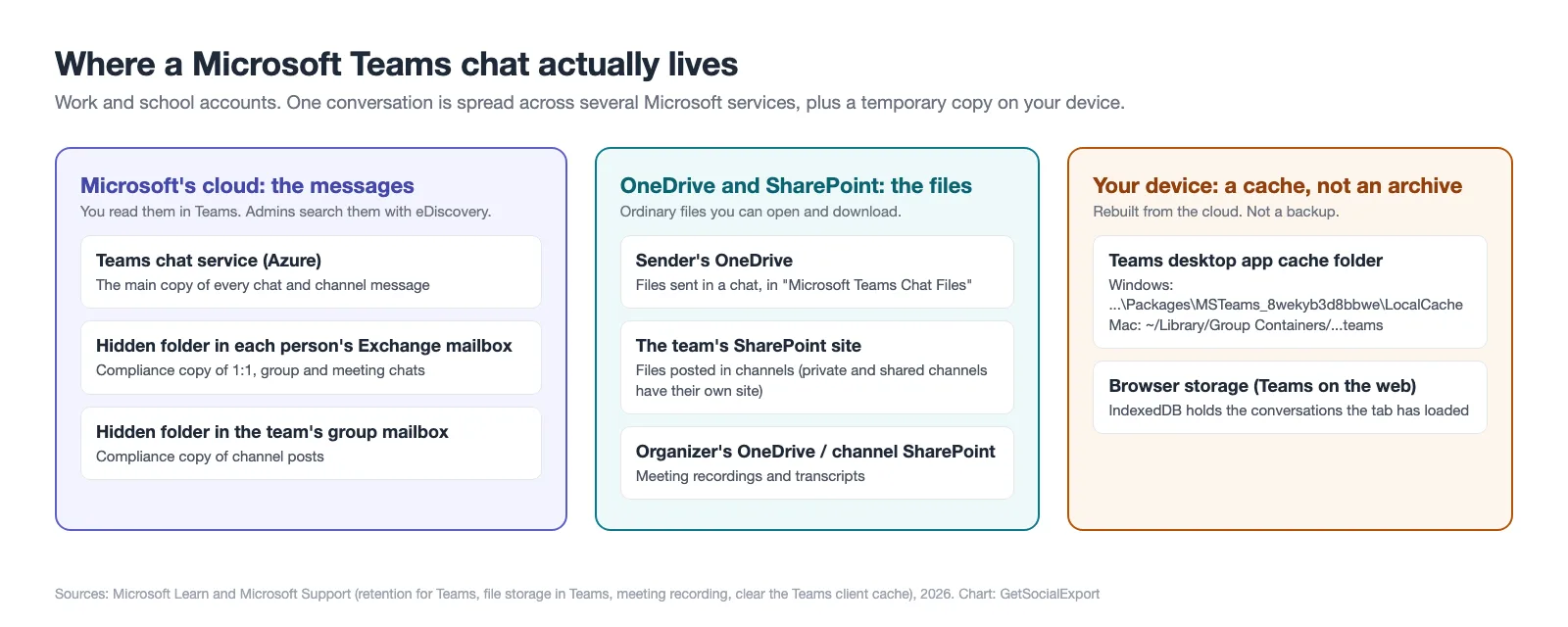
Search your laptop for a folder called "Teams chats" and you won't find one. There is no file you can copy to a USB stick, no archive sitting in Documents. Ask IT where your conversations are kept and the honest answer is "in several places, and you can open two of them."
That surprises people, usually at the worst moment: the week before they leave a job, when a chat is needed for a complaint, or when a laptop is replaced and someone asks whether the history will come across. This article maps where each part of a Microsoft Teams conversation is actually stored, according to Microsoft's own documentation, and what that means if you want a copy of it.
Most of it applies to work and school accounts, which is where the complicated storage lives. Personal Teams has its own short section near the end.
The short answer
A Teams chat isn't one thing. The text of the messages, the files people attach, and the meeting recordings each go to a different Microsoft service:
| Part of the conversation | Where Microsoft stores it | Can you open it directly? |
|---|---|---|
| Chat and channel messages | Teams' own chat service in Microsoft's cloud | Only through Teams |
| Compliance copy of chats | A hidden folder in the Exchange mailbox of each person in the chat | No. Admins search it with eDiscovery |
| Compliance copy of channel posts | A hidden folder in the team's group mailbox | No. Admins search it with eDiscovery |
| Files sent in a chat | The sender's OneDrive, in a folder called "Microsoft Teams Chat Files" | Yes, if you sent them. Others get a shared link |
| Files posted in a channel | The team's SharePoint site | Yes, if you're a member |
| Meeting recordings and transcripts | The organizer's OneDrive, or the channel's SharePoint site | Usually, depending on permissions |
| What's on your computer | An app cache (desktop) or browser storage (web) | Technically, but it isn't a readable archive |
The rest of this article goes through each row, with the details Microsoft documents and the traps that come with them.
The messages: a cloud service, plus a mailbox copy you can't see
The text you type lives first in what Microsoft calls an "Azure-powered chat service", which it describes in its retention documentation as the "primary storage for all messages (chats and channel messages)." That service is what the Teams app reads from when you scroll back through a conversation.
There is also a second copy, made for compliance. Microsoft's words: "Data from Teams chats is stored in a hidden folder in the mailbox of each user included in the chat, and a similar hidden folder in a group mailbox is used for Teams channel messages." Those folders sit inside Exchange Online, the same system that runs work email, but they aren't Outlook folders. Microsoft says they "aren't designed to be directly accessible to users or administrators." Their job is to let a compliance administrator search and hold messages with eDiscovery tools.
A few details from the same documentation are worth knowing:
- Everyone in a chat gets their own copy. A one-to-one chat is stored in two mailboxes, a group chat of eight in eight. If someone is added to a chat later, "a copy of all messages shared with them are ingested into their mailbox."
- Shared channels use a separate kind of mailbox (Microsoft lists it as SubstrateGroup), not the team's group mailbox.
- Private channels moved. Until late 2025, private channel messages were copied into user mailboxes. Microsoft has been migrating them to group mailboxes, the same as standard and shared channels.
- Not everything is kept for compliance. Microsoft lists items that retention policies do not keep: code snippets, voice memos recorded in the mobile app, thumbnails, announcement images, and other people's emoji reactions. Text, embedded images, tables and links are kept.
This split explains a common puzzle. When a chat disappears from Teams because of a retention policy, a copy may still exist in that hidden mailbox folder for days, or for years if the mailbox is on legal hold. We covered how that deletion works, and the retention periods real organisations choose, in How long does Microsoft Teams keep your chats?
Which country the messages are in
Teams stores data in the geographic region tied to the organisation's Microsoft 365 tenant. According to Microsoft's data location page, the list of local data centres includes Australia, Brazil, Canada, France, Germany, India, Italy, Japan, Norway, Poland, Qatar, South Africa, South Korea, Sweden, Switzerland, the United Arab Emirates and the United Kingdom, plus wider Americas, APAC and EMEA regions. There's a catch: the country-level options are for new tenants. Microsoft says existing tenants in Brazil and Canada, for example, "will continue to have their data stored in the Americas."
An administrator can check the region in the Microsoft 365 admin center under Settings > Organization profile, under Data location. Regular users can't see it.
The files: OneDrive for chats, SharePoint for channels
Attachments never go into the chat service. Microsoft's file storage help page is direct: "Files you upload in a one-on-one or group chat are stored in the Microsoft Teams Chat Files in your OneDrive for Business folder and are shared only with the people in that conversation."
Note whose OneDrive that is. The file lands in the sender's OneDrive, and everyone else in the chat receives a sharing link to it. If a colleague sent you a contract in a chat, you never had your own copy; you had access to theirs. What happens to that file when their account is closed depends on how their employer handles departing users' OneDrive, not on anything in Teams.
Channels work differently. Files posted in a standard channel are stored in the team's SharePoint site, which all members can reach. Microsoft's Teams and SharePoint overview adds that each private channel and each shared channel gets a SharePoint site of its own, open only to that channel's members.
One more detail from the same help page: the OneDrive you see in Teams is the work or school one. "Teams can't currently connect to your personal OneDrive."
Meeting recordings and transcripts
Recordings follow the same logic as files. Microsoft's meeting recording documentation says a recording "gets uploaded to the meeting organizer's OneDrive (private meetings) or SharePoint (channel meetings)." Channel meeting recordings and transcripts go to a Recordings folder in the channel's SharePoint site. If the organisation blocks downloads, they go to a Recordings\View only folder, where members can watch but not download.
The same page documents a fallback worth knowing about: if a recording can't be uploaded to OneDrive or SharePoint, it's temporarily kept in Teams' "async media storage and must be downloaded within 21 days. Otherwise, the recording is deleted."
The chat that runs alongside a meeting is not a file. It's stored like any group chat: in the chat service, with a compliance copy in each participant's mailbox.
What's on your own computer
Teams does keep data on your device, which is why people expect to find their chats there. But it's a cache, kept so the app opens fast, not an archive you can rely on.
The desktop app keeps its cache in a folder Microsoft lists on its clear-the-cache page:
- New Teams on Windows:
%userprofile%\appdata\local\Packages\MSTeams_8wekyb3d8bbwe\LocalCache\Microsoft\MSTeams - Classic Teams on Windows:
%appdata%\Microsoft\Teams - New Teams on Mac:
~/Library/Group Containers/UBF8T346G9.com.microsoft.teamsand~/Library/Containers/com.microsoft.teams2
Microsoft's own advice shows what these folders are for. It says you can delete them, after which "the Teams cache files have to be rebuilt," and that clearing them does not fix missing messages or a chat history that won't load. In other words, the folder is filled from the cloud and can be thrown away. Copying it to another machine doesn't give you a readable chat history, and Microsoft doesn't document its format as something users can open.
Teams on the web (teams.microsoft.com for work or school, teams.live.com for personal accounts) keeps its working copy in the browser's own storage, a database called IndexedDB. You can see the databases in Chrome under DevTools > Application > IndexedDB while a Teams tab is open. Like the desktop cache, it only holds the conversations and messages the app has loaded, and it lives in that one browser profile.
That last point matters for a practical reason. Because the web app's local copy is structured data rather than a screen, a browser extension can read it and turn it into a document. That's how our own Chat Exporter for Teams works: it reads the signed-in person's conversations from the Teams tab's local storage, with no admin rights, and saves them as PDF, Excel/CSV, text, HTML or JSON. It also means it can only export what Teams has loaded, so for an old conversation you scroll up first until the oldest messages you want appear.
Personal Teams (the free version)
Personal Teams, used with a personal Microsoft account, has no organisation behind it, so there is no IT department setting retention rules or running searches. Microsoft's help for personal Teams says shared files are in the "Microsoft Teams Chat Files" folder of your OneDrive, and you export them from the OneDrive app.
It's also the only version of Teams with a built-in export for ordinary users. Microsoft's export page for personal Teams lets you choose "Chat history, Media, or both" and submit a request. Your call log is included, and a download link appears under Available Exports when the files are ready.
How to get a copy of each part
Put the map together and the options become clear. What you can do depends on which part you need and whether you are the user or the administrator.
| What you need | Who can get it | How |
|---|---|---|
| Files from a chat | You, for files you sent | OneDrive > Microsoft Teams Chat Files, or the chat's Shared tab |
| Files from a channel | Any channel member | The channel's Shared tab, or the SharePoint site |
| A meeting recording | The organizer, or channel members if downloads are allowed | OneDrive or the channel's SharePoint Recordings folder |
| Work or school chat messages, as an organisation | Administrators | eDiscovery, or the Teams Export APIs |
| Work or school chat messages, as a user | You | No built-in export. Copy and paste, print, or a tool that reads your own chats |
| Personal Teams messages | You | Microsoft's export page for personal Teams |
The administrator route is powerful but not built for individuals. The Export APIs can pull "1:1, group chat, meeting chats, and channel messages," but they need an app registered with Microsoft and an application permission such as Chat.Read.All, which "only an administrator can approve." Microsoft also requires an active Teams licence for the users whose data is exported. Nobody runs that for one employee who wants a record of a conversation with their manager.
For that person, the choice is between copying by hand, which loses dates and breaks on long threads, and a tool that reads their own chats. If you go the tool route, our guides on exporting a Teams chat to PDF and saving your chats before you leave a job walk through it. Chat Exporter's free version saves the latest 100 messages of a chat to text and CSV. Pro costs $27.90 once and adds the whole loaded history, pictures, every format and a dated evidence PDF with a SHA-256 fingerprint. All our product guides are on the guides page, and you can install the extension here.
A word of caution. Work chats are usually your employer's records, and some organisations restrict copying them. Read your acceptable-use and records policies before exporting work conversations, and handle other people's messages with care.
Why it's built this way
Spreading a conversation across services looks messy from the user's side, but it follows a logic. Microsoft built Teams on top of what it already had: Exchange for compliance and legal hold, SharePoint and OneDrive for files, and a fast chat service for the conversation itself. Each piece gets the policies its service already supports, which is what large organisations buy Microsoft 365 for.
The cost falls on the individual. There's no single place that holds "my Teams history", no export button for work accounts, and the copy on your own machine is a cache that Microsoft tells you to delete when things go wrong. If a conversation matters to you, the time to save it is while you can still see it.
Read next: Can you transfer Microsoft Teams chat history to another account?